Payment guide
How to pay for Visatory
For companies in Vietnam. Plans are prepaid for a month or a year, in đồng, and nothing is ever charged automatically. This page walks through every screen you will see, from choosing a plan to receiving the invoice.






01 · Before you pay
Open Billing
Only an owner or administrator of the workspace can pay. Billing opens even when the trial has ended or the plan has run out, which is exactly when you need it.
- Sign in to your company's workspace, for example yourcompany.visatory.com.
- Go to Settings → Billing.
- Scroll to “Choose a plan and pay”. If a plan is running, it is called “Renew your plan”.
Prices are in Vietnamese đồng and include all fees. Any VAT is shown as its own line in the order summary before you pay.
02 · Before you pay
Choose a plan and a term
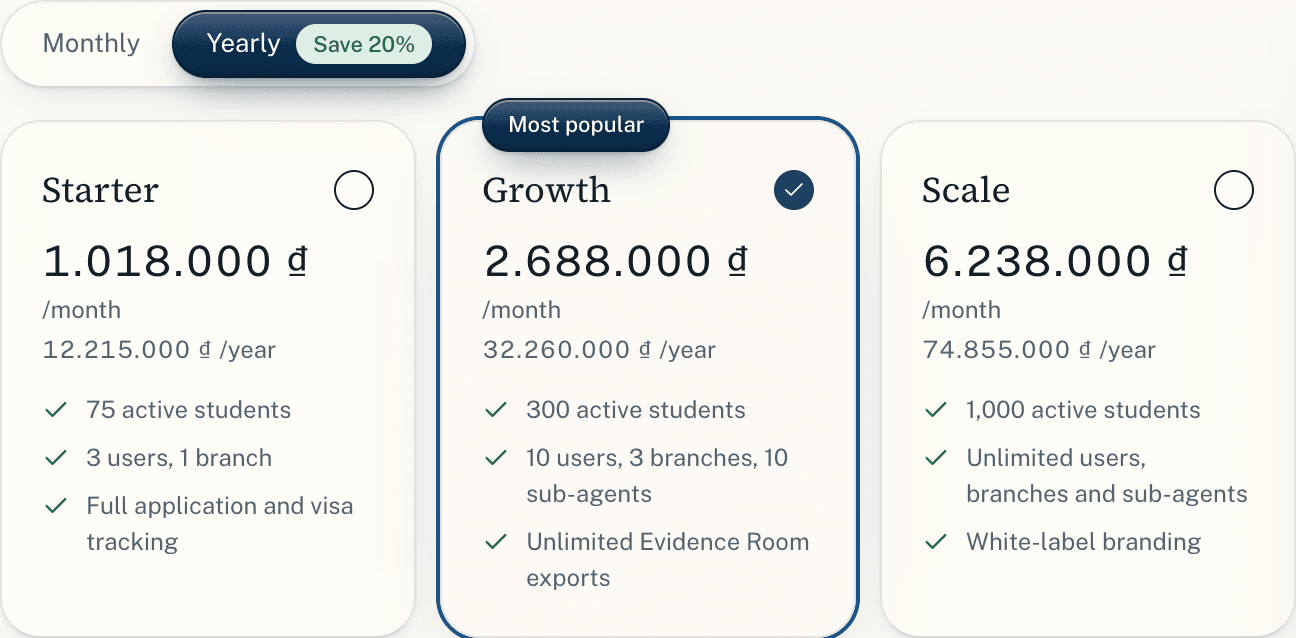
Choose Monthly or Yearly, then a plan. Paying yearly is 20% cheaper than month by month. Each plan card shows the price per month, the yearly total and the three main limits.
03 · Before you pay
Choose how to pay
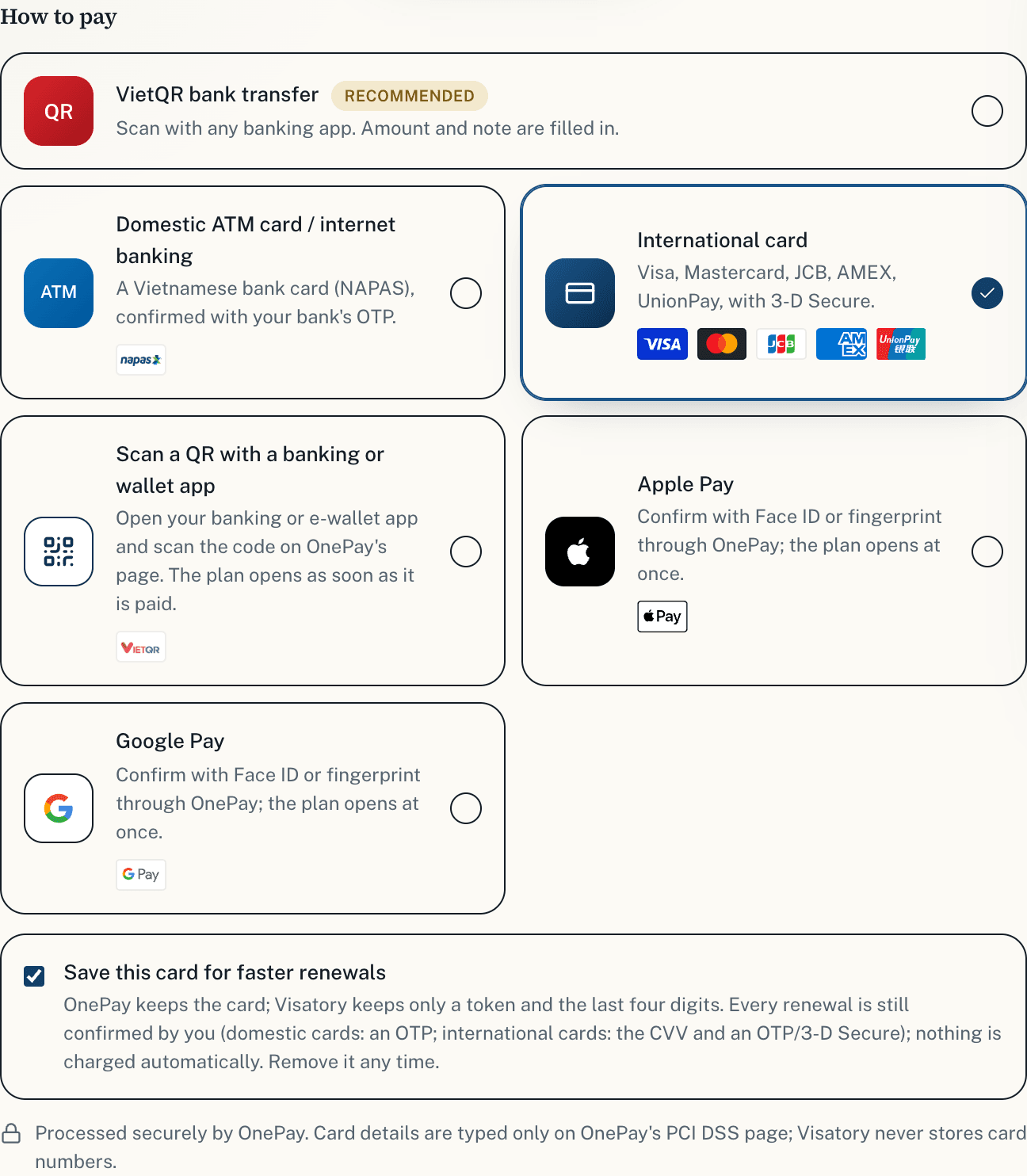
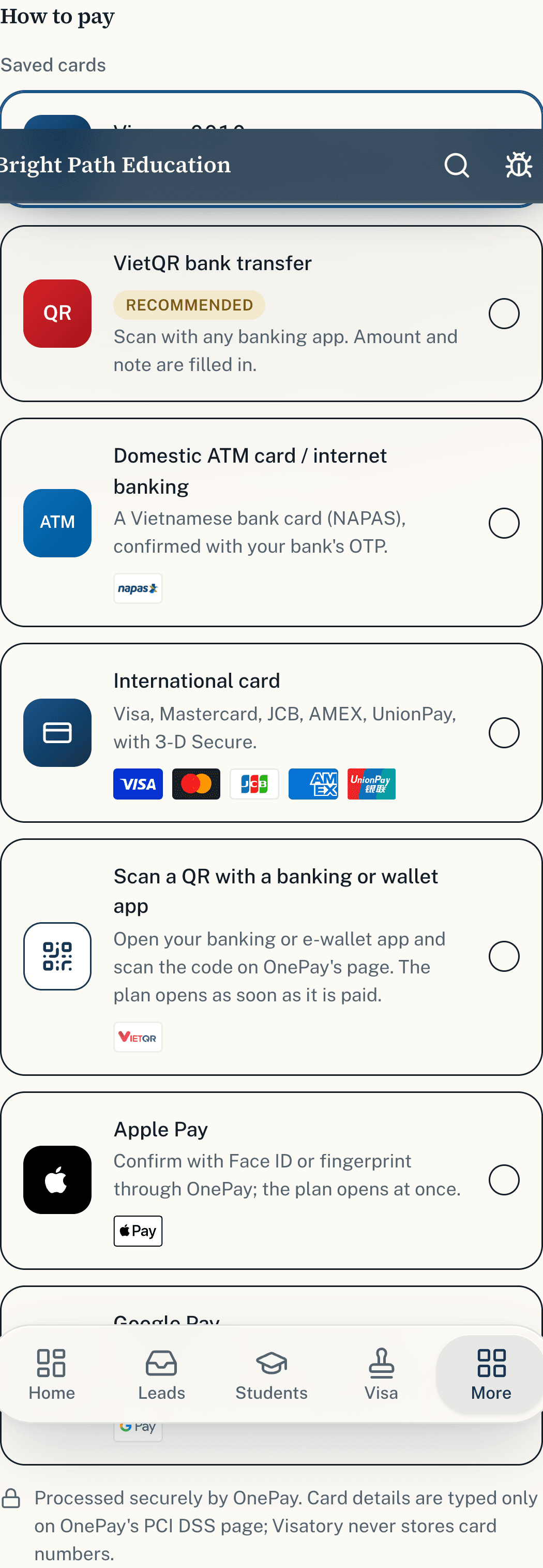
There are six ways. Pick a box; it gets a bold border and a tick.
- VietQR bank transfer: scan with any banking app; the amount and note are filled in. The plan starts when the team confirms the money has arrived.
- Domestic ATM card / internet banking: a Vietnamese bank card (NAPAS), confirmed with your bank's OTP.
- International card: Visa, Mastercard, JCB, AMEX, UnionPay, with 3-D Secure.
- Scan a QR with a banking or e-wallet app on OnePay's page.
- Apple Pay or Google Pay: confirm with Face ID or a fingerprint.
The last five go through the OnePay gateway and start the plan as soon as the payment is made. Card details are typed only on OnePay's page; Visatory never receives or stores card numbers.
04 · Before you pay
VAT invoice (if you need one)
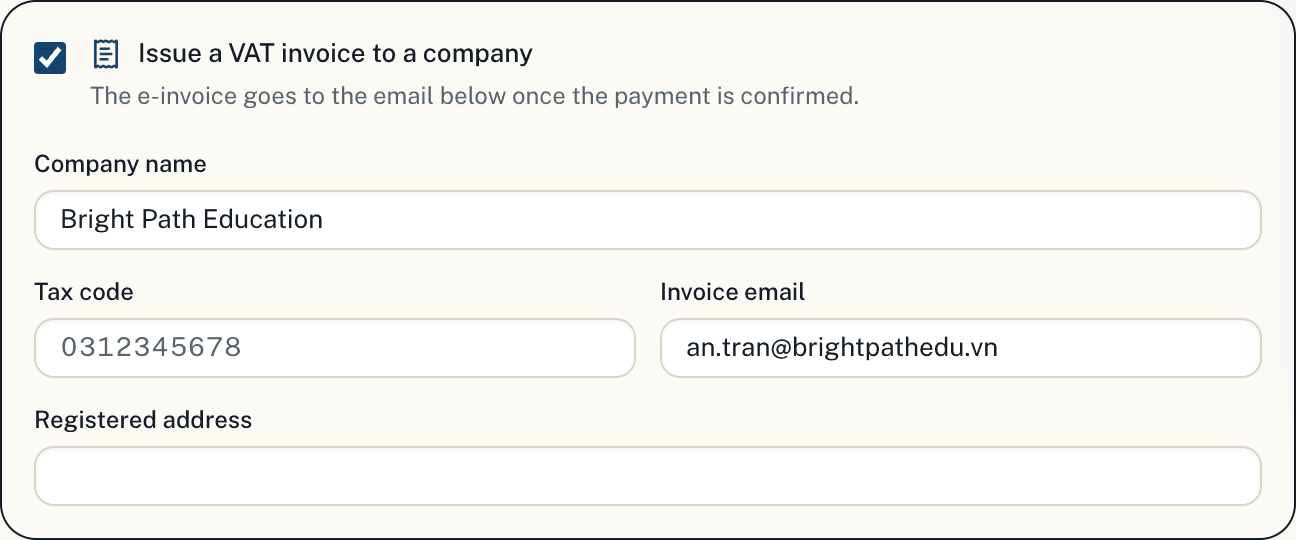
Companies needing a VAT invoice tick “Issue a VAT invoice to a company” and enter the company name, tax code, registered address and the email for the invoice. A tax code is 10 digits, or 10 digits and -3 for a branch.
The e-invoice is emailed once the payment is confirmed. Its number appears in Payment history.
05 · Before you pay
Read and agree to the payment terms
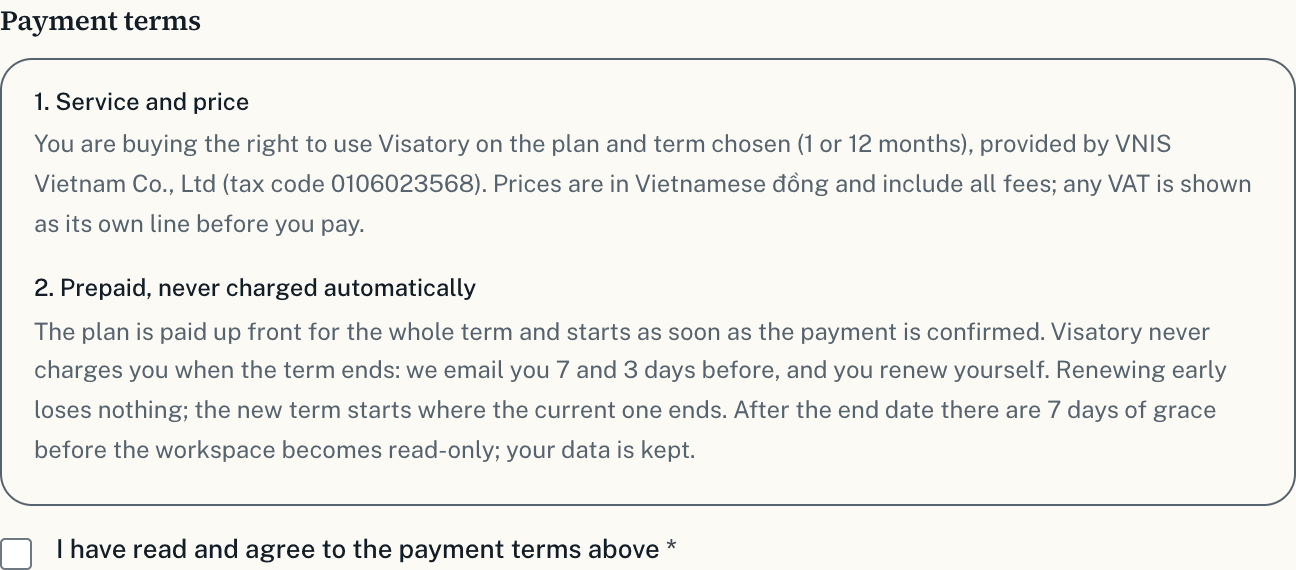
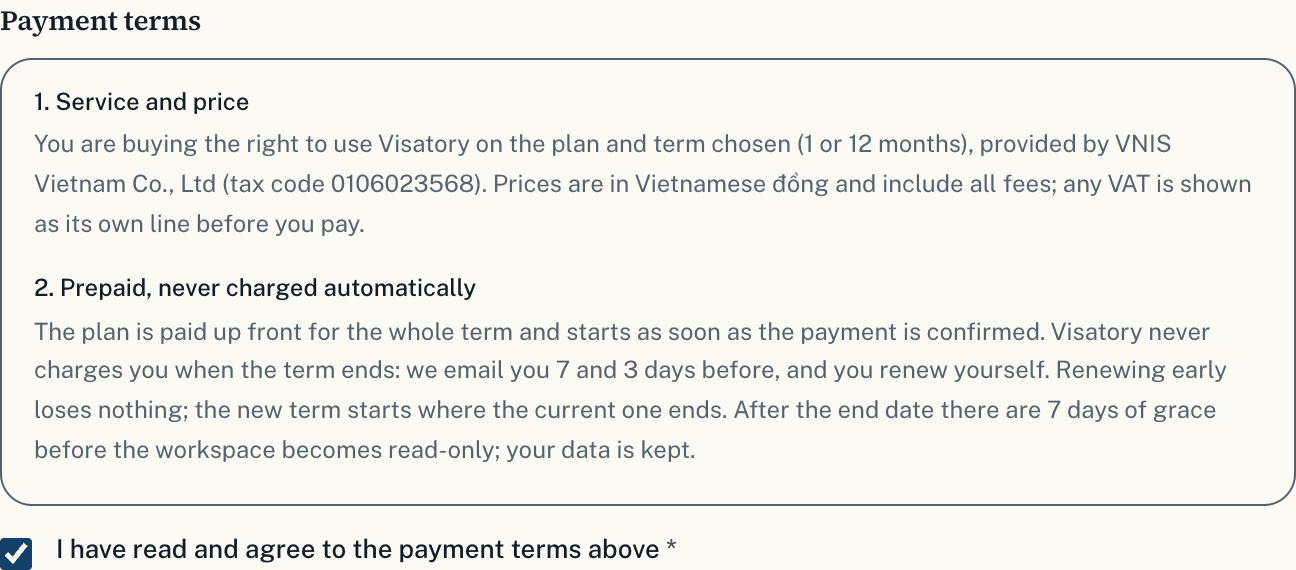
The payment terms are on the page itself, in a scroll box: service and price, prepaid and never charged automatically, ways to pay, saved cards, cancellation and refunds, invoices, disputes. The Pay button works only once you tick “I have read and agree to the payment terms above”. The moment you agree is kept with the order.
06 · Before you pay
Check the order and press Pay
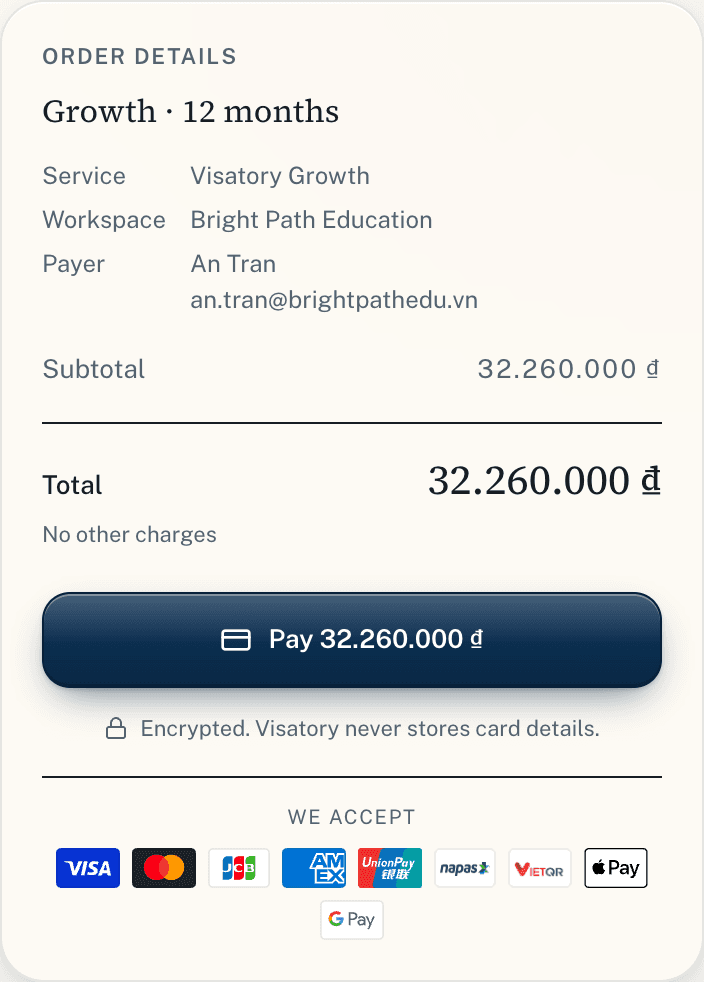
The panel on the right sums up the order: plan and term, service, workspace, payer, subtotal, any VAT and the total. Check it and press Pay. For the OnePay methods you are taken to OnePay's page.
07 · Paying through OnePay
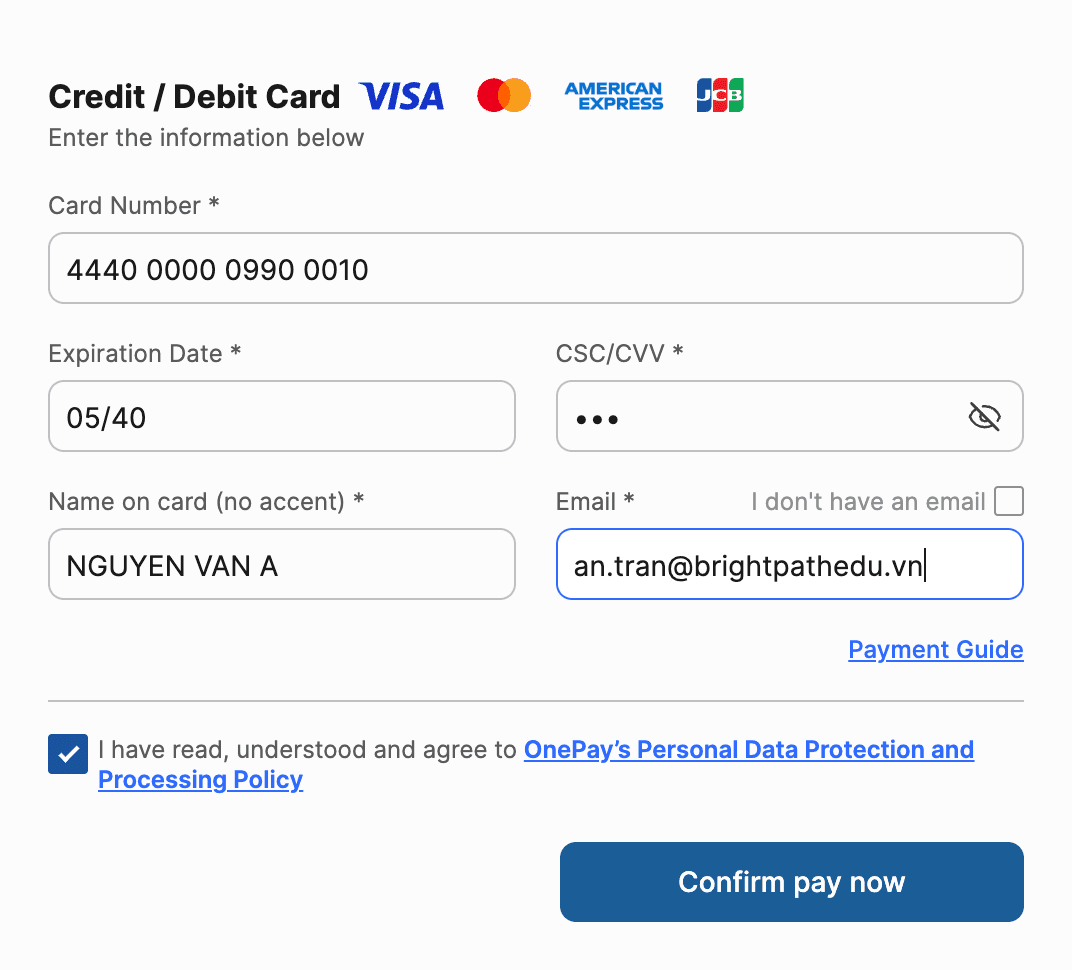
International card (Visa, Mastercard, JCB, AMEX, UnionPay)
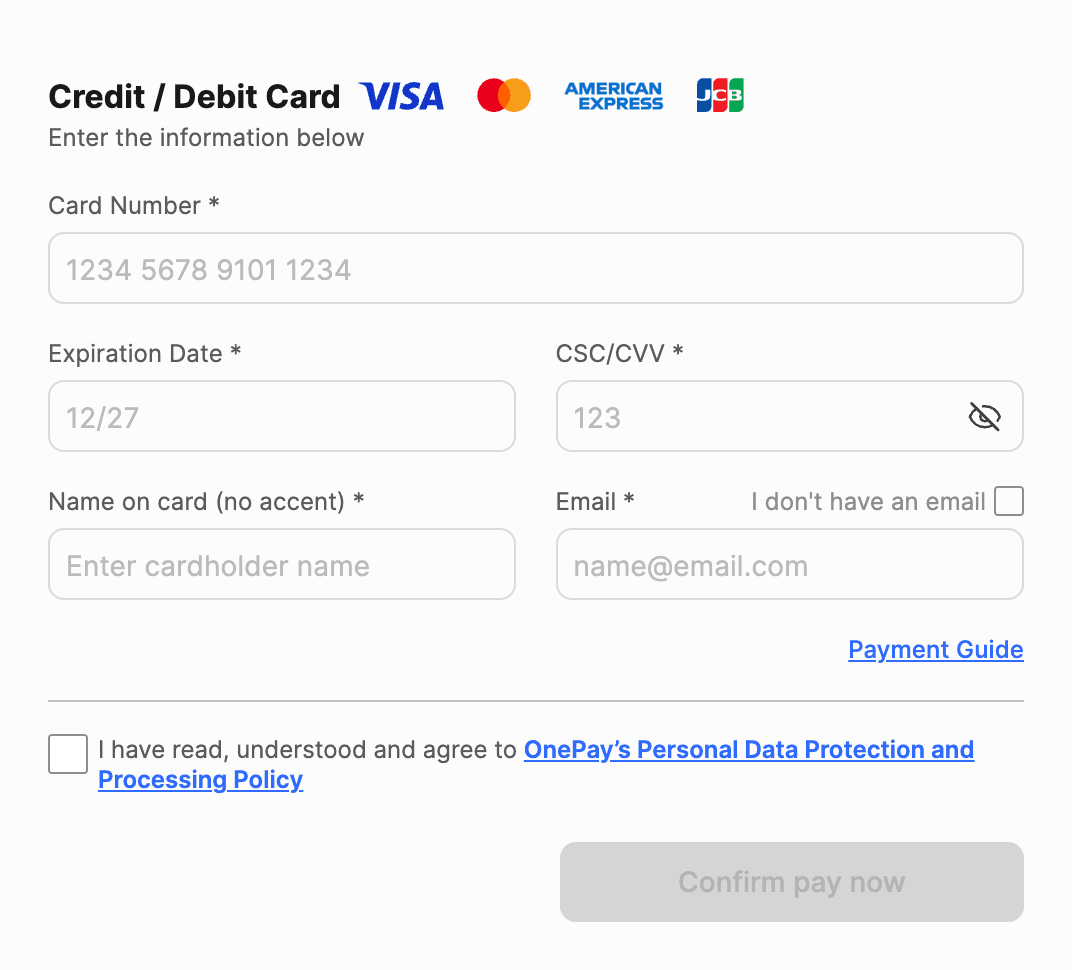
OnePay's page shows the amount and the order reference. Enter the card, then confirm with your bank.
- Enter the card number, the expiry month/year, the CVV on the back and the name on the card (no accents).
- Enter an email for OnePay's receipt and tick OnePay's data policy.
- Press Confirm payment, then complete 3-D Secure as your bank asks (usually an OTP by text or in the banking app).
- Once confirmed, you are taken back to Billing in Visatory.
If you left “Save this card for faster renewals” ticked when choosing how to pay, OnePay saves the card once the payment succeeds. Visatory keeps only a token, the card brand and the last four digits.
08 · Paying through OnePay
Domestic ATM card / internet banking
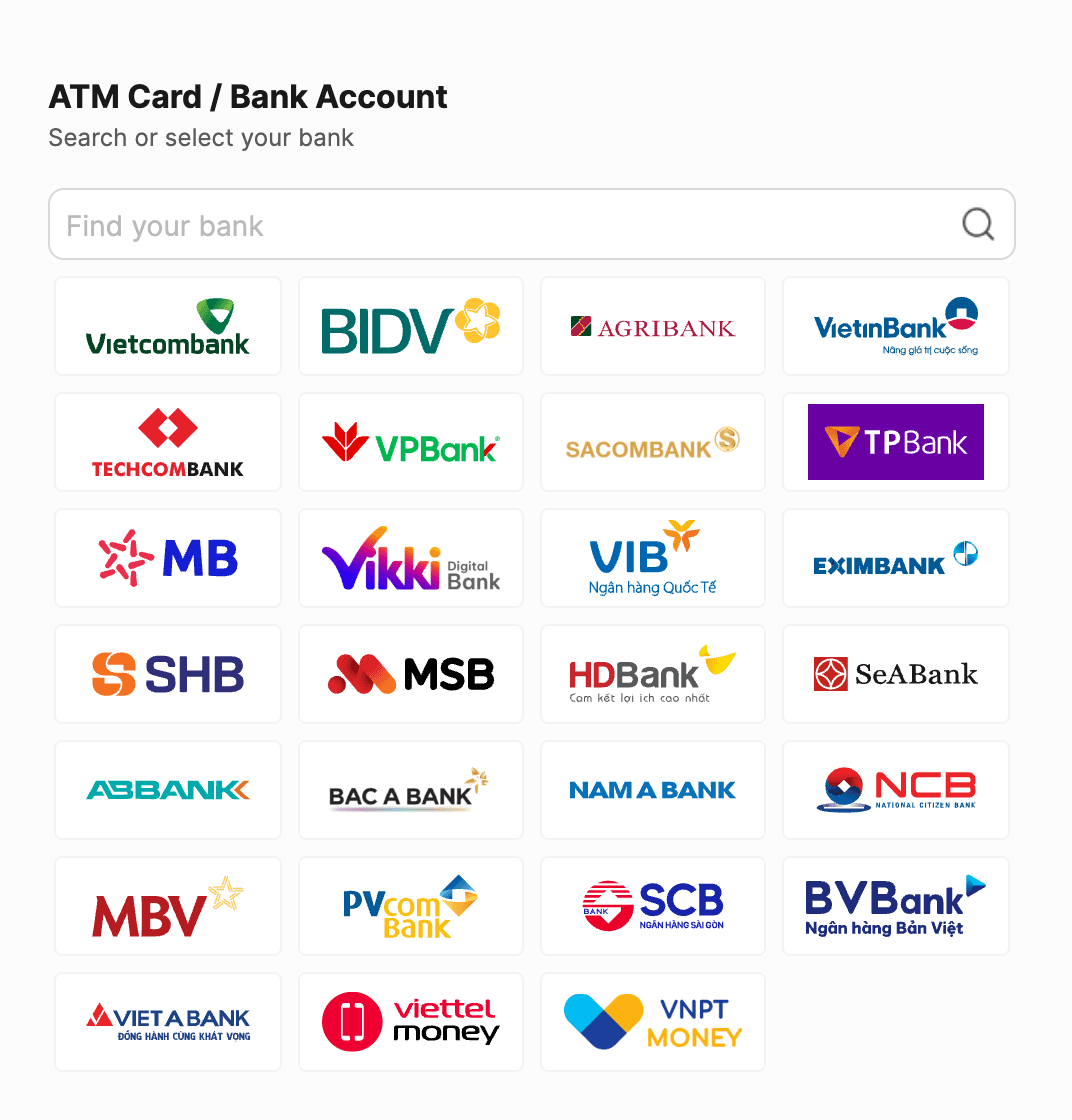
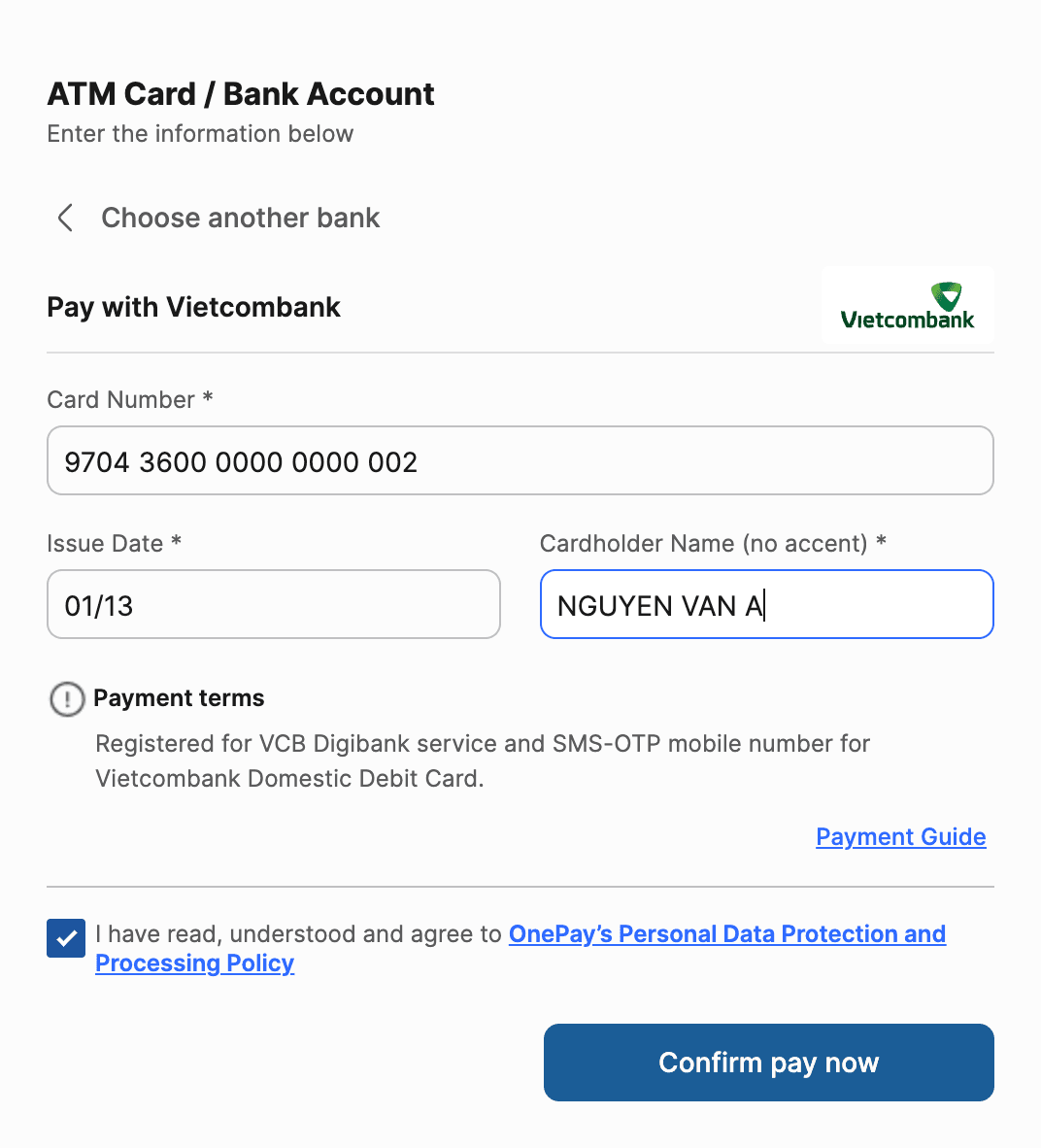
The card must be registered for online payment (internet banking or the bank's online payment service).
- Choose the card's bank from the list, or type its name in the search box.
- Enter the card number, the issue date (or expiry, depending on the bank) and the cardholder name without accents, tick the agreement and press Confirm payment.
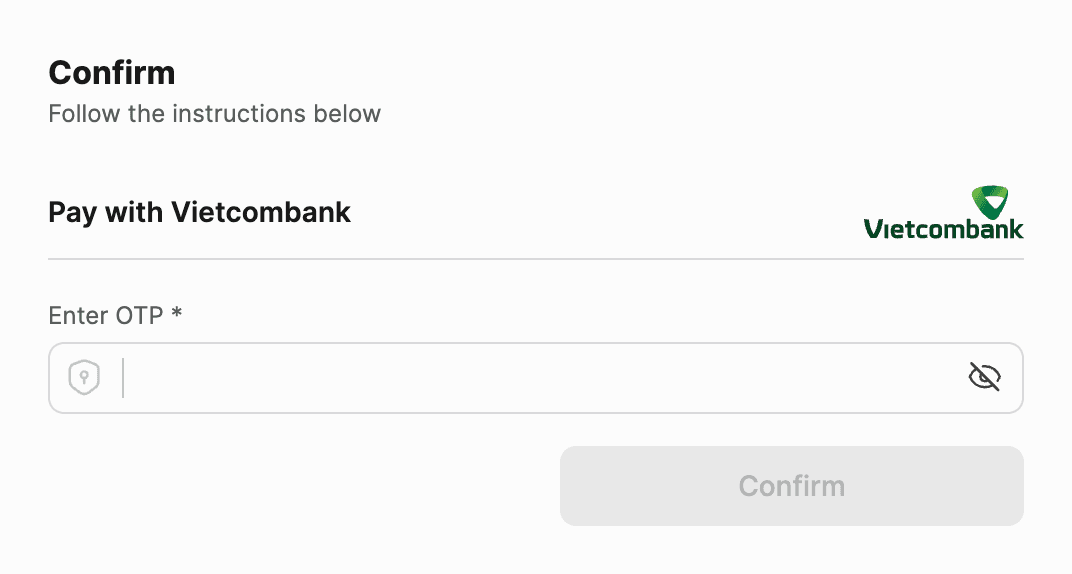
- Enter the OTP your bank sends and press Confirm.
09 · Paying through OnePay
Bank QR, e-wallets, Apple Pay, Google Pay
For QR, OnePay's page shows a code: open your banking or e-wallet app, scan it and confirm in the app. For Apple Pay or Google Pay, confirm with Face ID, Touch ID or a fingerprint. The plan starts as soon as it is paid and you are taken back to Billing.
Apple Pay shows on iPhone, iPad and Macs in Safari; Google Pay on Chrome and Android phones. If your device has neither, choose a card or QR.
10 · Bank transfer
VietQR bank transfer
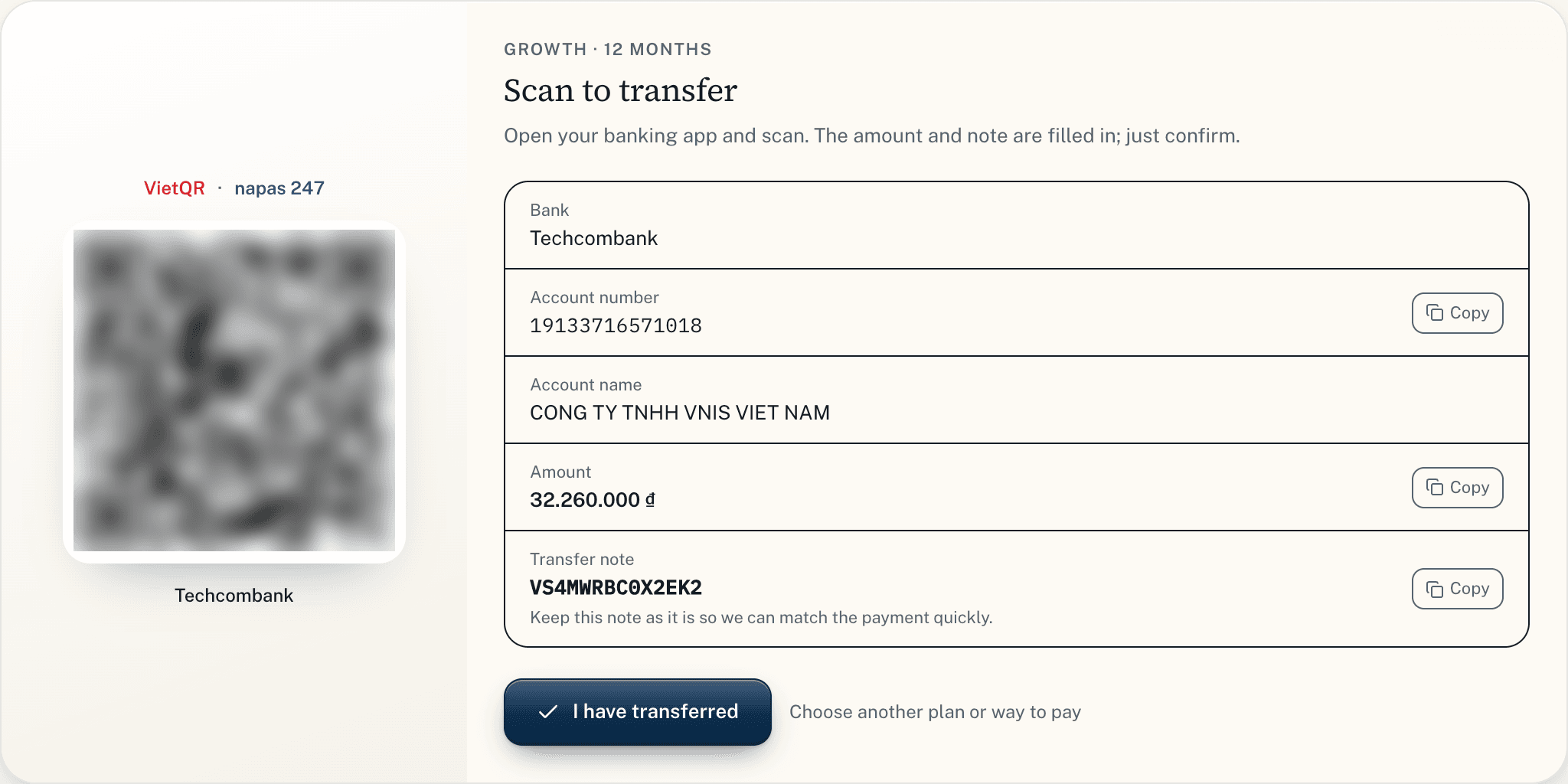
After “Get the transfer QR”, the page shows the VietQR code with the bank, account number, account name, amount and transfer note for the order.
- Open any banking app and scan. The amount and note are filled in; just confirm.
- Keep the transfer note as it is (the order code, starting with VS) so we can match it quickly.
- Once sent, press “I have transferred”. When the money arrives the team confirms it, the plan starts and you get an email. In office hours it usually takes minutes.
Want another plan or way to pay before you send it? Press “Choose another plan or way to pay”.
11 · After paying
Payment received
Back in Visatory, Billing says “Payment received” and the plan shows Active with the date it is paid until. A receipt goes to your email; a VAT invoice, if you asked for one, follows separately.


12 · After paying
Payment history and invoices
At the foot of Billing is Payment history: plan, date, order code, how it was paid (for a card, the brand and last four digits), amount, status and invoice. The order code is what to quote when you contact support.

13 · Renewing
Renewing: nothing is ever charged automatically
A prepaid plan does not renew itself. We email you 7 and 3 days before it ends; open Billing and pay for the next term as you did the first. Renewing early loses nothing: the new term starts where the current one ends. After the end date there are 7 days of grace before the workspace becomes read-only; your data is kept.
14 · Renewing
Quick renewal with a saved card
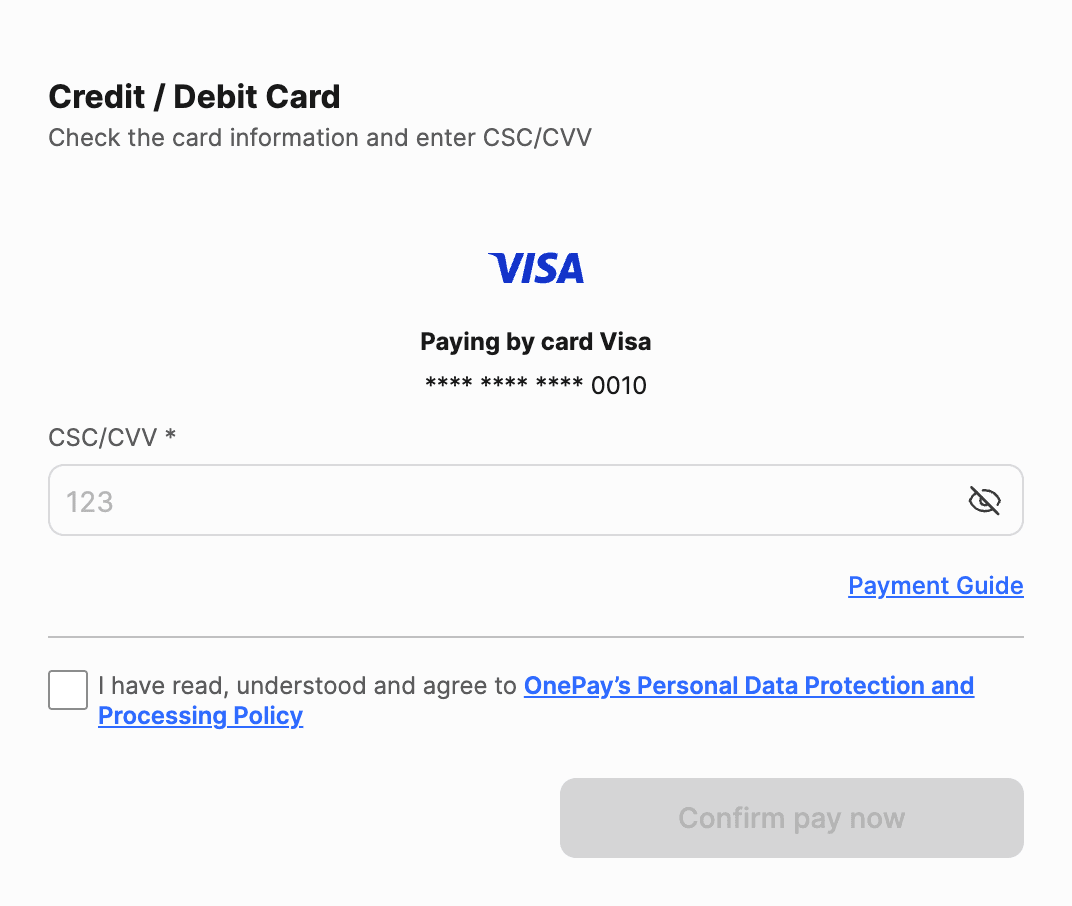
With a saved card, the top of Billing is called “Quick renewal” and the saved card is already selected with your current plan. Tick the terms and press Pay: OnePay does not ask for the card number again.
- International card: just the CVV, then 3-D Secure/OTP.
- Domestic ATM card: just the OTP your bank sends.
The renewal reminder emails name the card too, for example “Renew with Visa •••• 0010”.

15 · Renewing
Managing saved cards
Saved cards lists the workspace's cards and which one renewals use. You can choose another card for renewals, turn quick renewal off, or remove a card. Removing it also deletes the token at OnePay; next time you enter the card again.

16 · If something goes wrong
When a payment does not go through
Billing always says what happened:
- “You cancelled the payment. Nothing was charged.”: you pressed Cancel on OnePay's page. Pay again whenever you like.
- “The payment did not go through: …”: the bank declined it, with the reason (for example insufficient funds, a wrong OTP, a card not registered for online payment). Try again, use another card or choose a bank transfer.
- “The payment session expired”: OnePay's page timed out before it was completed. Nothing was charged.
- “The payment is being processed”: there is no final answer yet. The system asks OnePay again every 10 minutes; when it settles, the page updates and you get an email.
Each order is recorded once, even if you reload the page or press a button twice, so one payment can never add two terms.
Charged but the plan did not start, or need a hand? Email support@visatory.com with the order code (it starts with VS); we answer within one working day.