User guide
Visatory user guide
From the first sign-in to the records a review asks for. Each section is a screen you will use, what it is for, and the three or four things to do on it first.
01
Your workspace and the dashboard
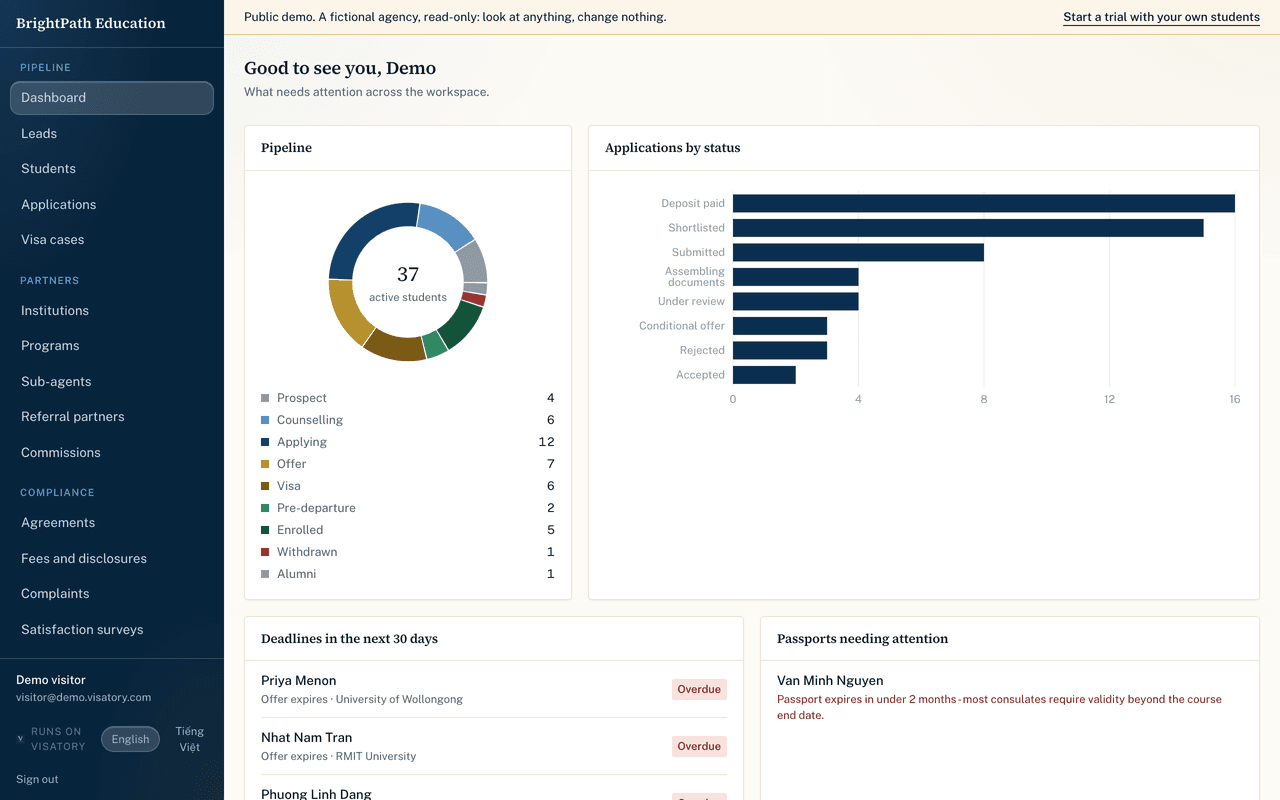
Your agency has its own address, such as youragency.visatory.com, and its own database. You sign in with a code sent to your email, so there is no password to forget or share. The dashboard opens on what needs you today.
- Sign in with your work email and the six-digit code we send.
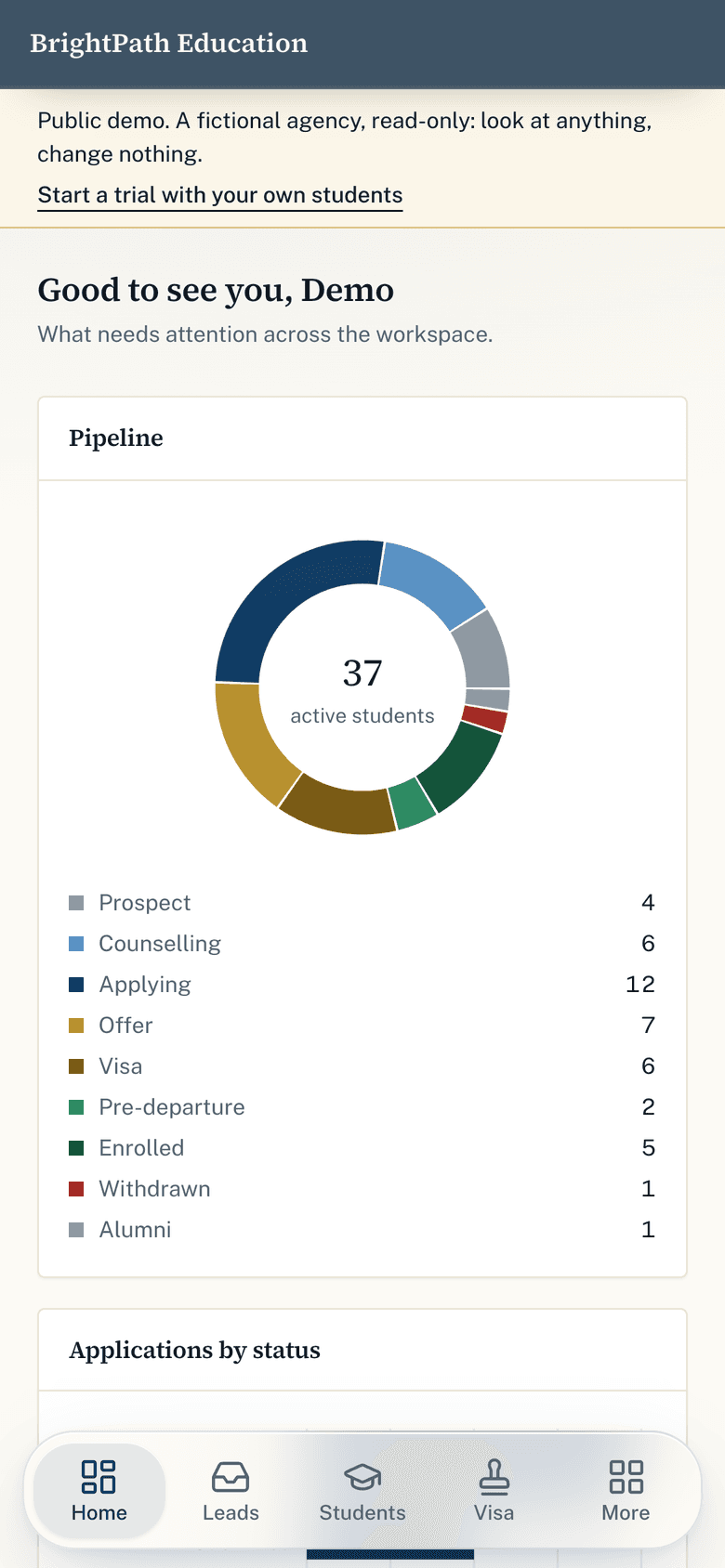
- The dashboard shows students by stage, what is due this week and leads nobody has answered.
- The left rail (or the tab bar on a phone) reaches every section.
02
Import students and leads
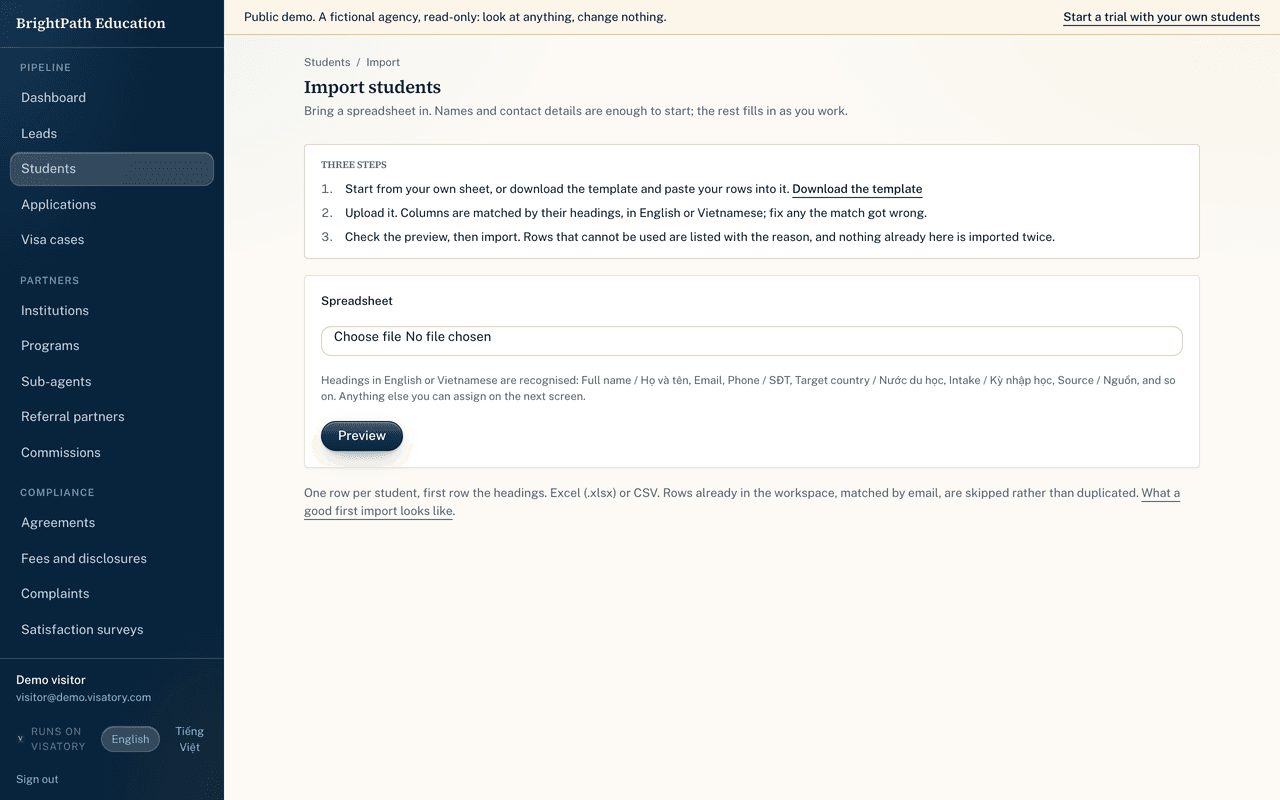
Start from the spreadsheet you already keep. The importer matches your columns, flags rows with missing or doubtful data, and shows everything before it saves. Nothing has to be retyped.
- Students, then Import. Download the template or upload your own file (Excel or CSV).
- Columns are matched by their headings, in English or Vietnamese; fix any match the guess got wrong.
- Review the flagged rows, fix or skip them, and import. Leads import the same way from Leads.
Send us the file and we import it for you, the same working day.
03
Students, guardians and applications
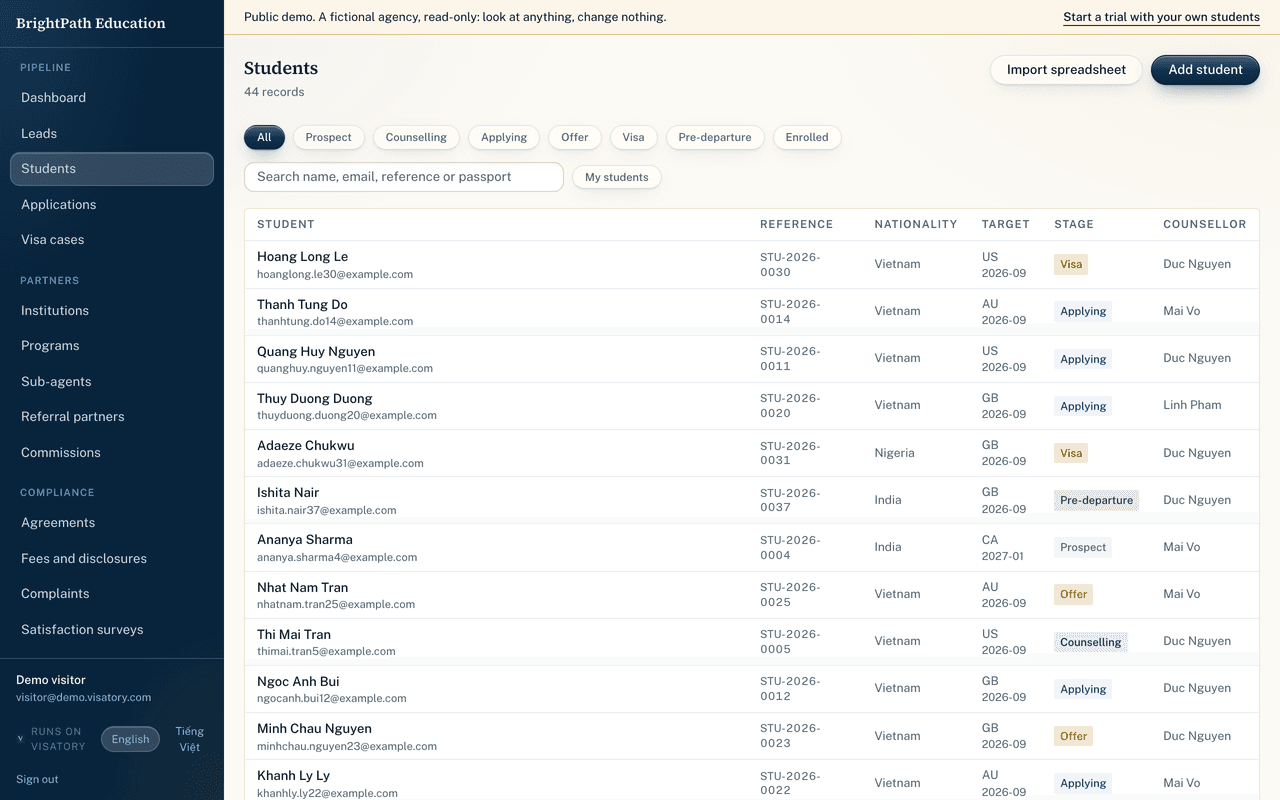
Each student has one file: contact details and guardians, documents with their history, notes, applications to each institution, offers and their conditions, and everything that happened, with dates.
- Open a student to see the whole file on one screen.
- Add an application from the student page; record the offer and each condition with its deadline.
- Applications lists every application across the agency by status.
04
Visa cases by country
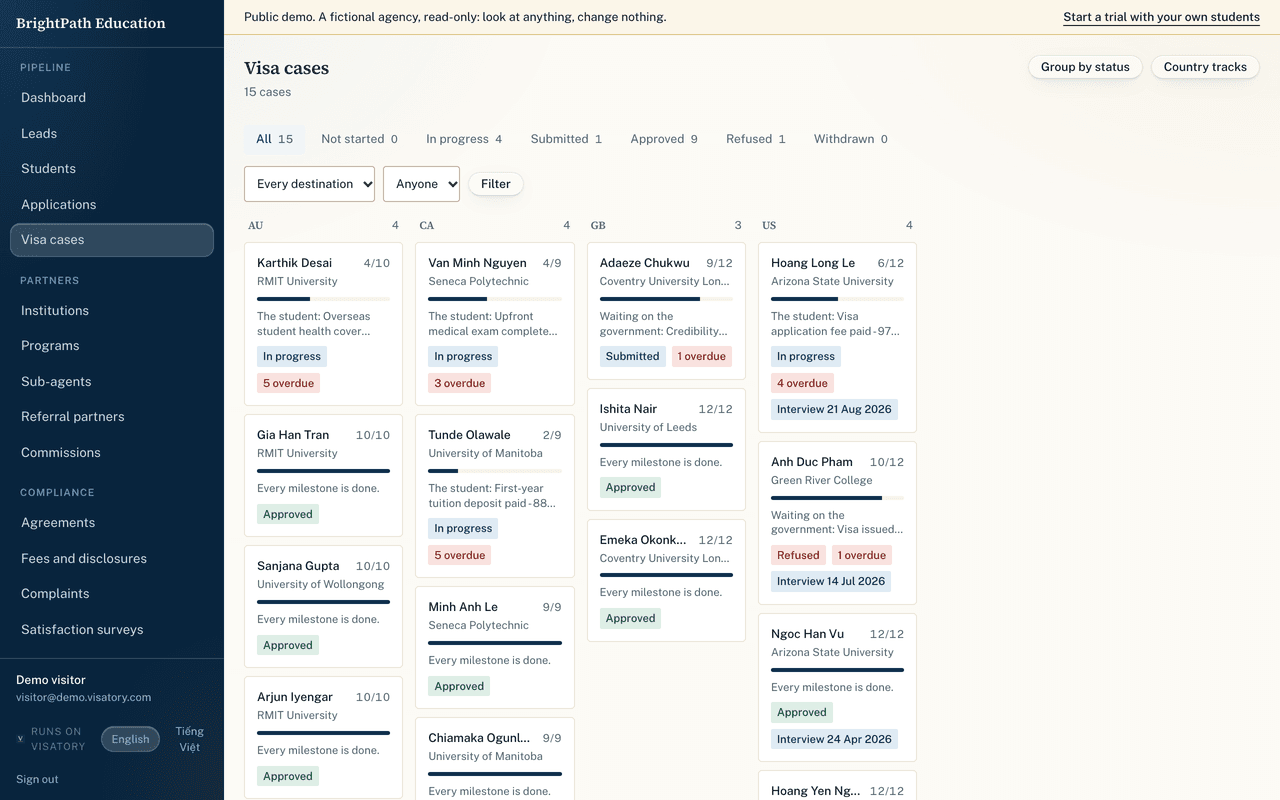
Each destination has its own track: I-20 and SEVIS for the United States, the CAS for the United Kingdom, the CoE for Australia, the attestation letter for Canada. Every step has an owner and a due date, so nothing falls between two deadlines.
- Open Visa cases to see what is due this week, by counsellor.
- Open a case to tick off steps, attach documents and record dates.
- A refusal is recorded on the case, so the next application starts from the reason.
05
The family portal
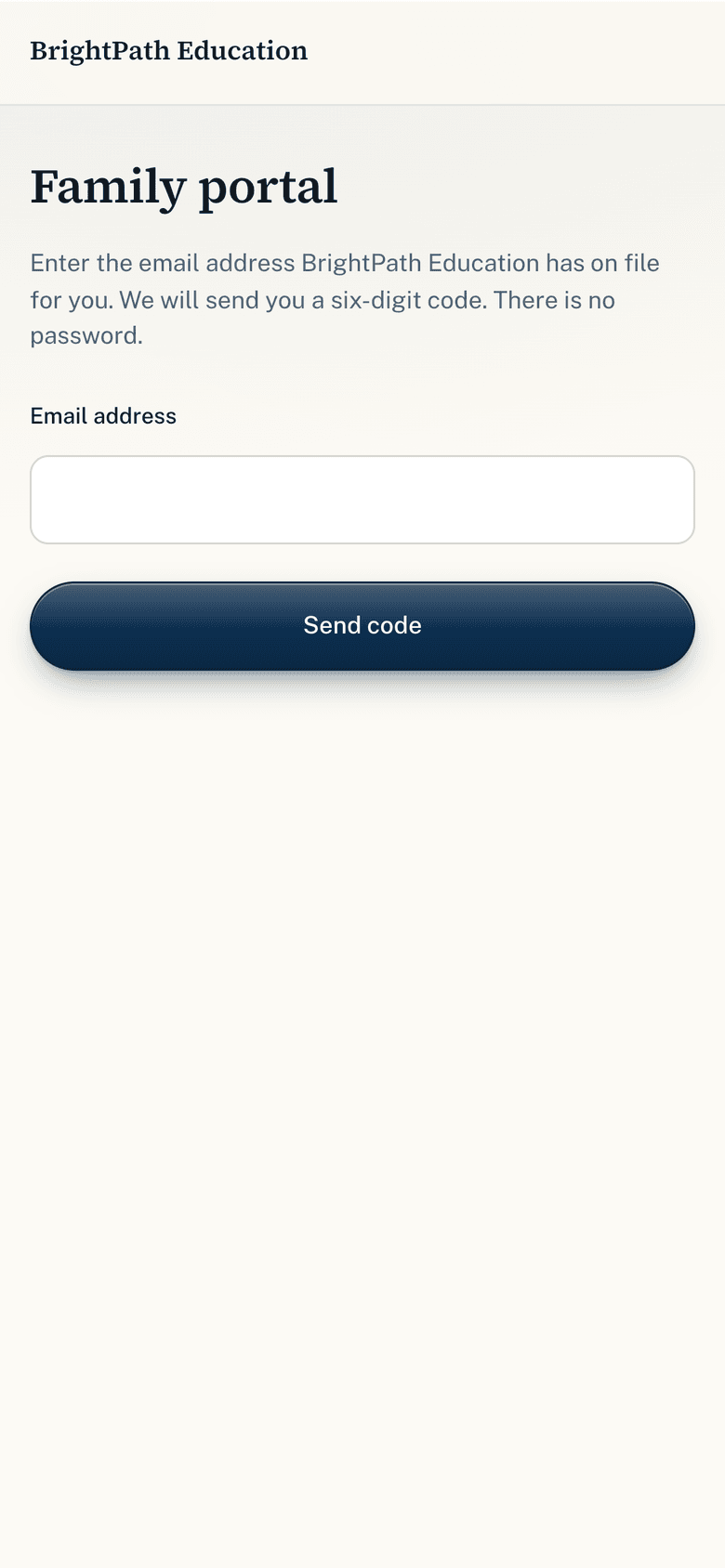
Invite a student or parent to a portal in your agency's name. They sign in with an emailed code and see, on their phone, where the application stands: each application and its status, the visa steps, the documents still needed, invoices, and who their counsellor is. Fewer "any news?" messages, because the answer is already there.
- On a student's page, open Family portal and invite the student or a guardian.
- They receive an email with your agency's name and a sign-in link; one sign-in covers every child in the family.
- What they see updates as you work the file. Nothing in the portal can change your records.
06
The Zalo inbox
Connect your agency's Zalo Official Account and conversations arrive in Visatory as leads and threads. Counsellors reply from the CRM, so advice is never left in somebody's personal phone, and it stays with the student's file when people change roles.
- Settings, then Zalo, then Connect. Sign in with the account that manages your Official Account.
- New conversations appear under Leads, Zalo.
- Reply from the thread; link it to a student when the enquiry becomes a file.
07
Commissions and sub-agents
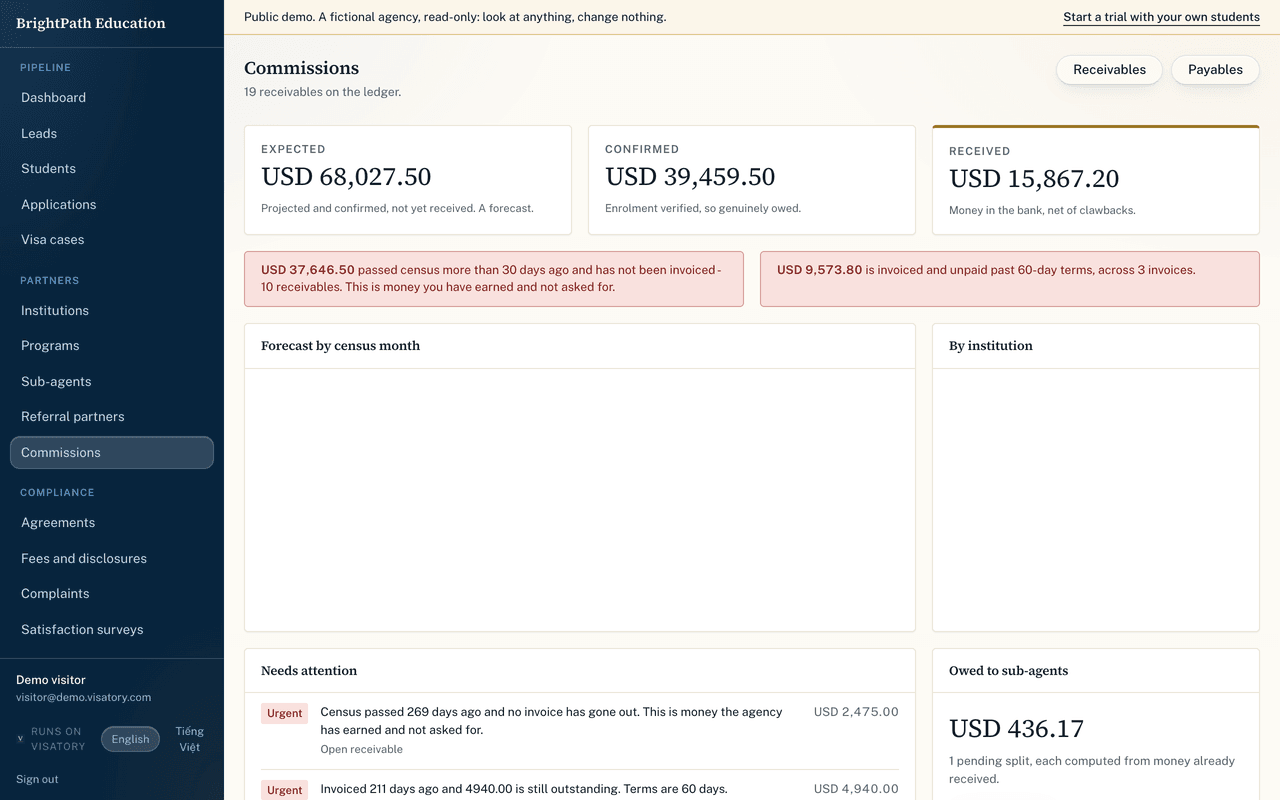
Every enrolment creates an expected commission on the institution's terms. When the census date passes it becomes a receivable; invoices and payments are reconciled line by line, including the share owed to a sub-agent.
- Add your institutions and their commission terms once.
- Commissions shows what is expected, owed, invoiced and paid, by institution.
- Sub-agent splits are calculated from the same line, so nobody is paid on money that has not arrived.
08
Reports
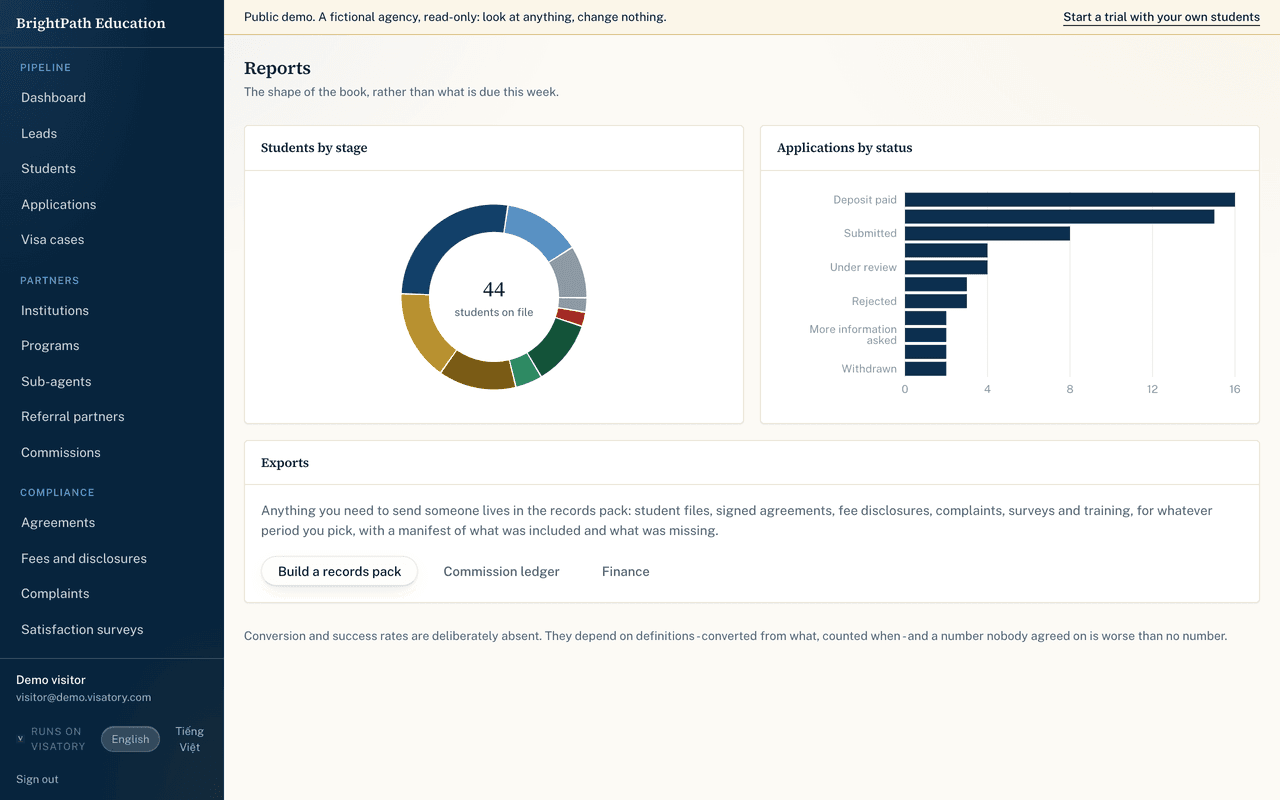
Two charts that answer the first questions of the week: how many students are at each stage, and where applications stand by status. Each person sees the branches they work in.
09
Records and the Evidence Room
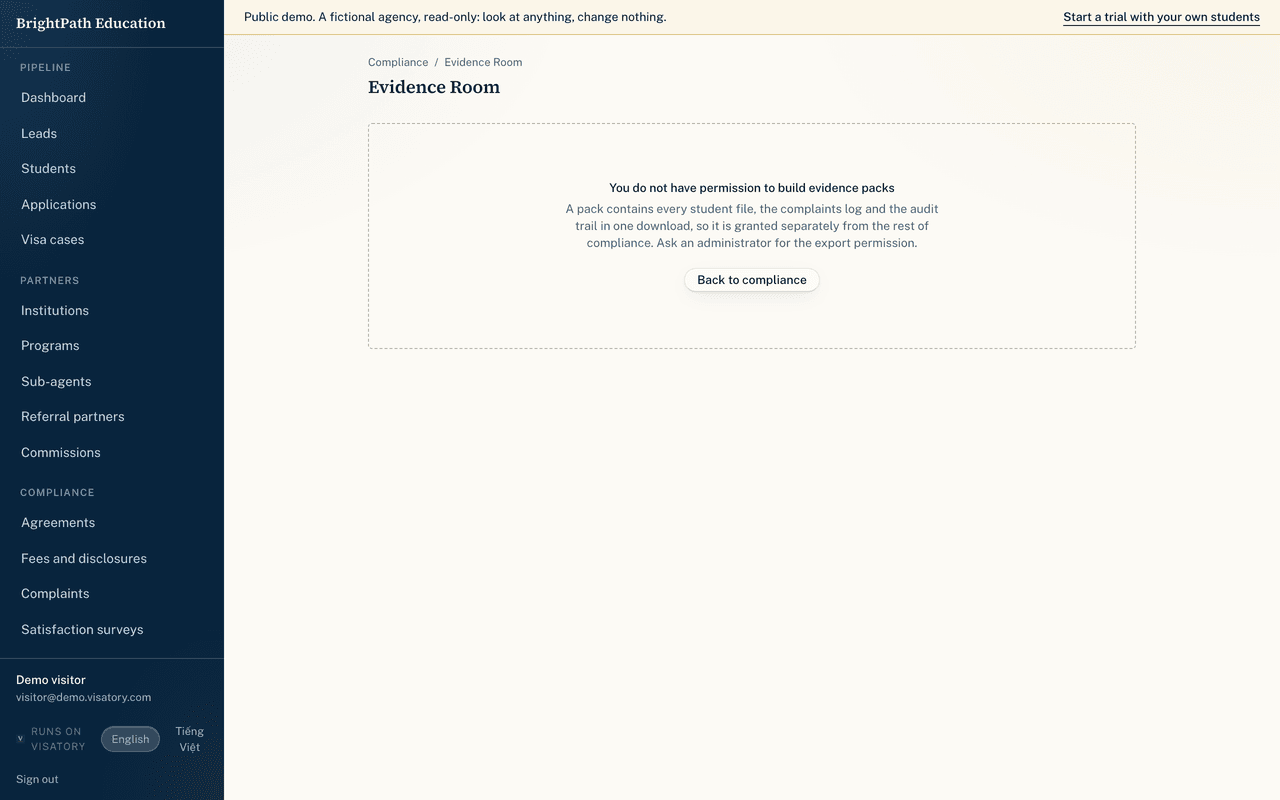
Signed agreements in the version the student saw, fee disclosures, complaints and what was done about them, consent, staff training, and the dates each must be kept until. The Evidence Room builds the pack a review asks for in minutes: a ZIP with a PDF manifest and the records as spreadsheets.
- Compliance holds agreements, fees, complaints, surveys, collateral and training.
- Open the Evidence Room and build a pack.
- Download the pack when it is ready; it is removed automatically after a while, so keep your copy.
10
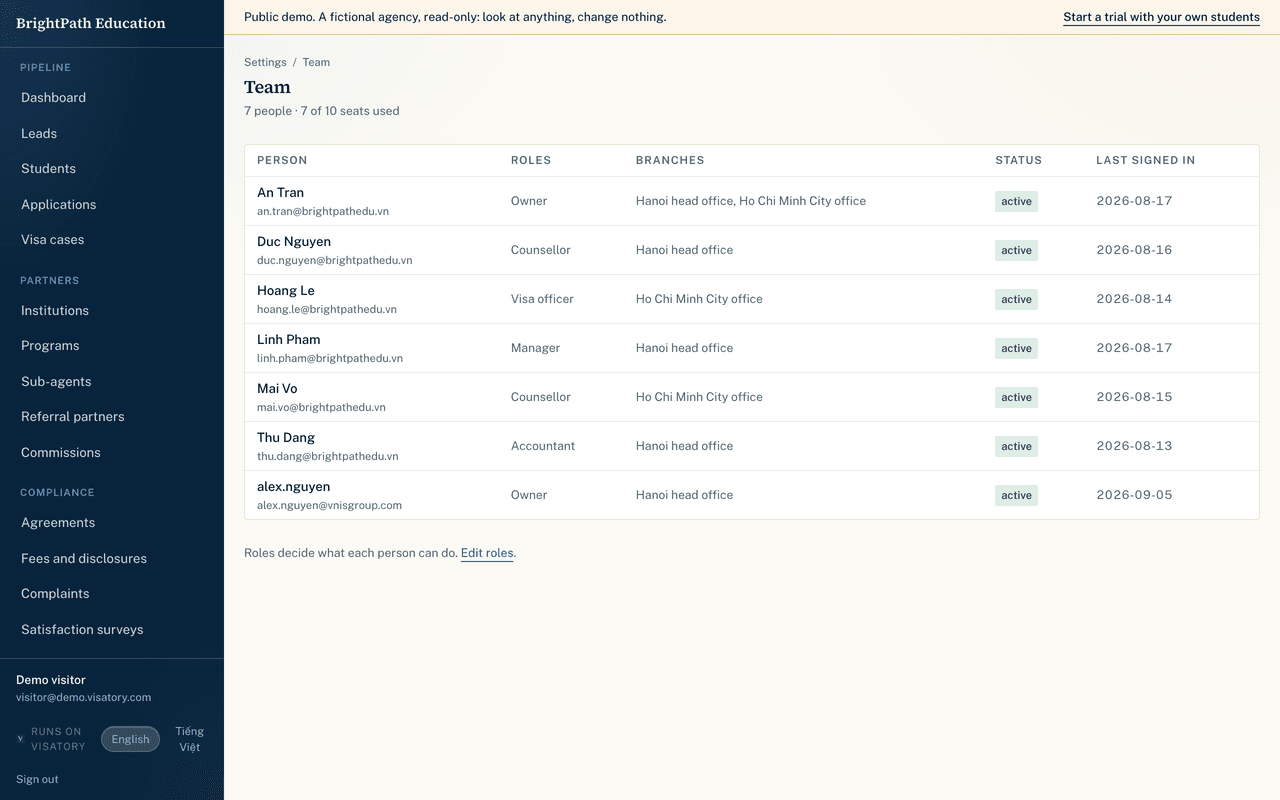
Your team, roles and branches
Invite colleagues with the right role and branch: counsellors see their own students, finance sees the money, the owner sees everything. Who viewed and changed what is recorded.
- Settings, then Team, then Invite. They sign in with a code; there is no password to share.
- Assign one of the six roles and a branch.
- Remove access the day someone leaves; their work stays in the files.
11
Your plan and billing
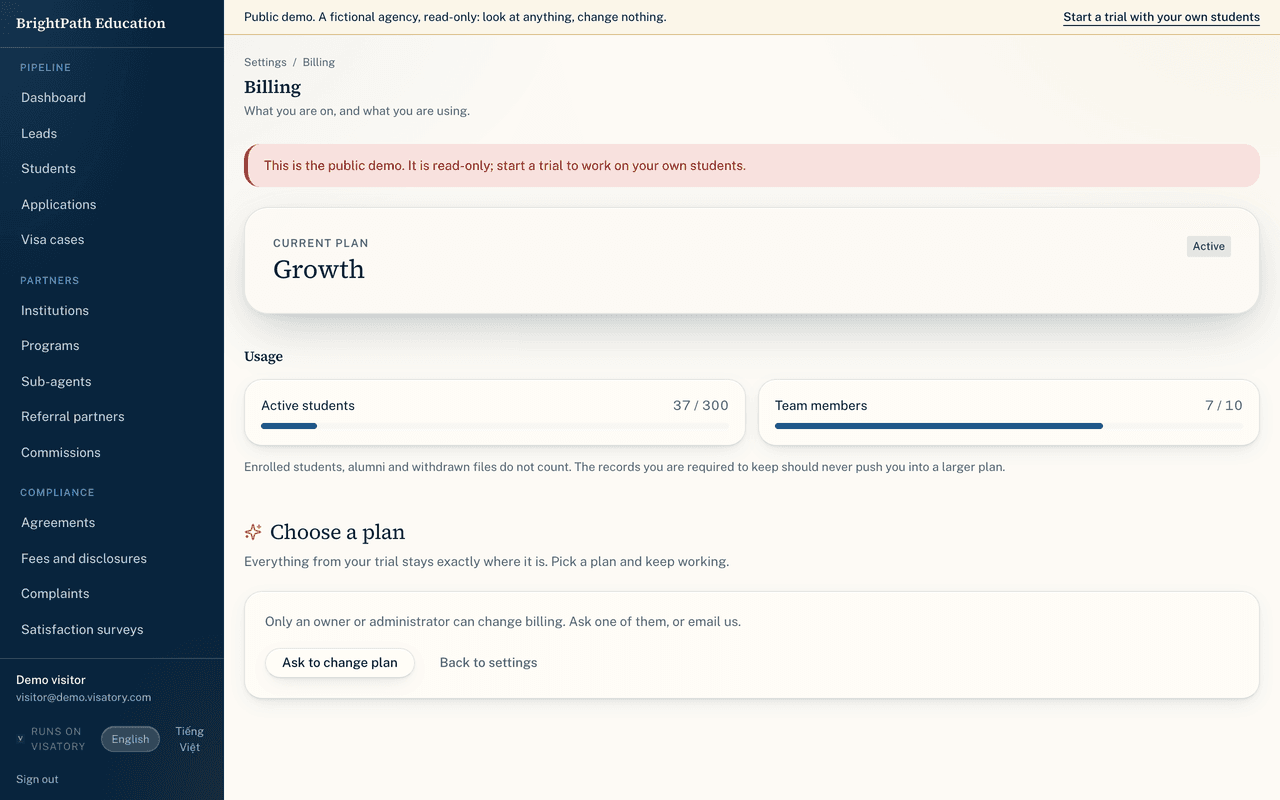
Every workspace starts with a free trial on Growth. Choose a plan from Settings, then Billing, when you are ready; Paddle processes the payment and sends the invoice. Changing plan moves your existing subscription, so you never pay twice, and card details, invoices and cancelling are one click away.
- Settings, then Billing: your plan, the trial days left and your usage.
- Choose monthly or yearly (yearly is 20% less) and a plan. Any running offer is applied automatically.
- After paying, the page confirms the payment and the workspace is on your plan at once.
Nothing is ever deleted. If a trial ends or a subscription stops, the workspace becomes read-only: you can still see and export everything.
12
On your phone
Visatory works as an app on a phone: add it to the home screen from the browser's share menu. The tab bar keeps the dashboard, leads, students and visas under your thumb; everything else is under More.
Start a free trial